
When a reader writes to me at The Gateway Pundit because a video is missing, the Disqus comments never appear, or the “I’m not a robot” check won’t load, I ask them to try the same page with their ad blocker paused. Often the missing feature comes right back. You can do that test on a single TGP article and keep your usual browsing settings everywhere else.
Start on the article that’s giving you trouble. If you’ve already typed a comment or filled out part of a form, copy your text before you begin. Some blockers reload the page the moment you pause them. Check that the address bar shows www.thegatewaypundit.com, then follow the steps for your browser or blocker below.
Which instructions do I need?
- Using Chrome, Edge, or Firefox on a computer? Open the Extensions button near the address bar (usually a puzzle piece) to see what’s installed. Follow the link for the name you see. AdBlock, Adblock Plus, uBlock Origin, uBlock Origin Lite, AdGuard, or Ghostery. If you don’t see a blocker there, go to your browser’s own controls.
- Using Safari? Go to iPhone or iPad or Mac.
- Using Brave or Opera? Jump to Brave Shields or Opera’s built-in ad blocker.
- Using an Android phone? Jump to Chrome, Firefox, Brave, or Samsung Internet.
AdBlock
Look for the red stop sign with a white hand. In desktop Chrome, Edge, or Firefox, AdBlock’s site-pause instructions take two clicks.
- Click the AdBlock icon while the TGP article is open.
- Click Pause on this site at the bottom of the panel. The article reloads automatically. Try the video, comments, or form again.
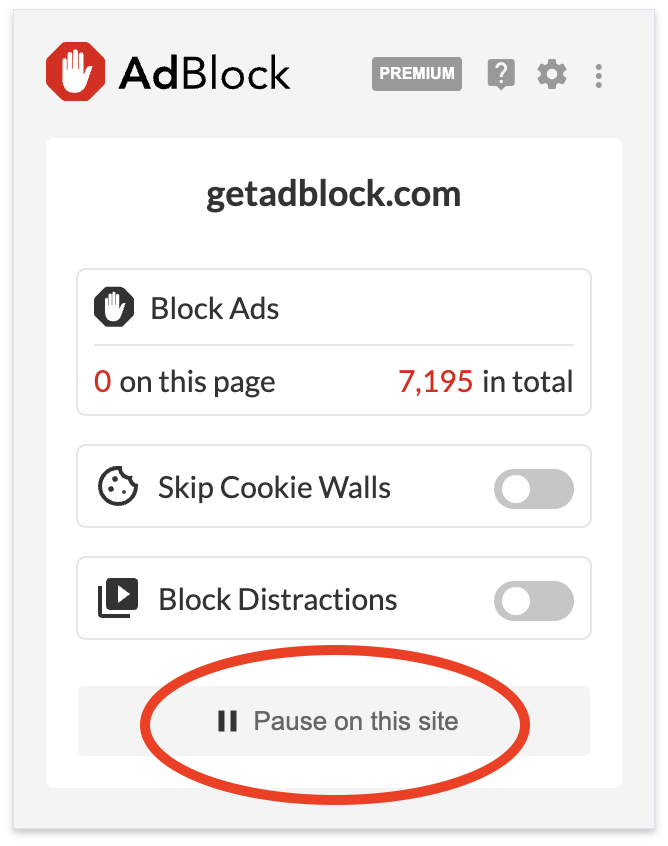
The toolbar icon turns green when the pause takes effect. AdBlock remembers the exception for seven days and renews it when you visit again during that window. To reverse it sooner, open the same panel and click Resume Ad Blocking.
Adblock Plus (ABP)
If your red stop sign has the letters ABP inside it, follow the Adblock Plus instructions. The following steps work in desktop Chrome, Edge, Firefox, and Opera.
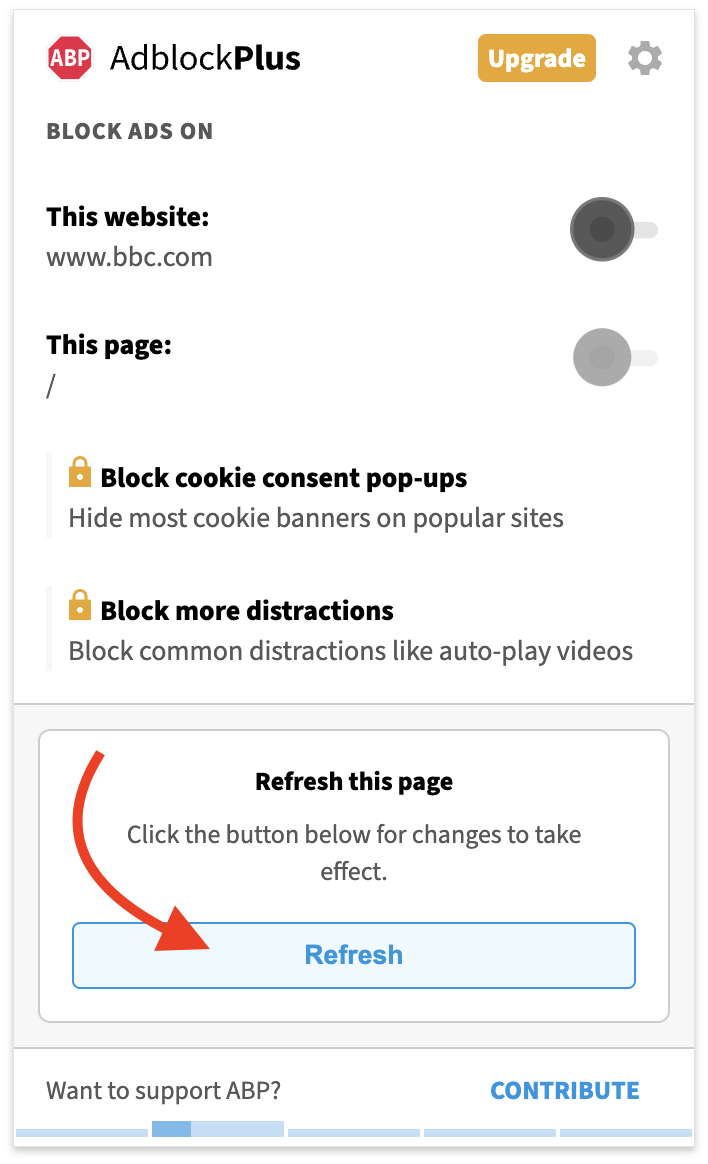
- Click the ABP icon.
- Under Block ads on, turn off the top switch, beside This website. The lower switch, This page, is handy if you only want to test the article you’re reading.
- Click Refresh in the panel. This loads the article with the new setting.
uBlock Origin
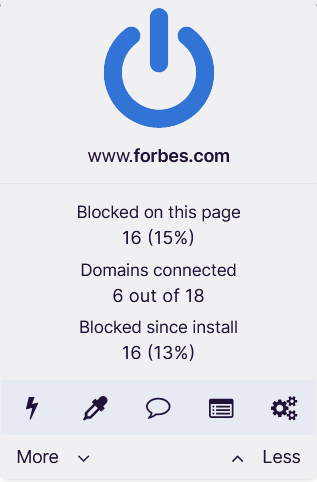
In Firefox, click the uBlock Origin toolbar icon. You’ll see a large power button above the website address, as shown in the developer’s guide to the popup.
- Check the address beneath the button, then click the large blue power button once. It dims when blocking is off for that site.
- Click the reload arrow that appears in the panel, or reload the article using your browser. Click the power button again later to restore blocking.
uBlock Origin Lite
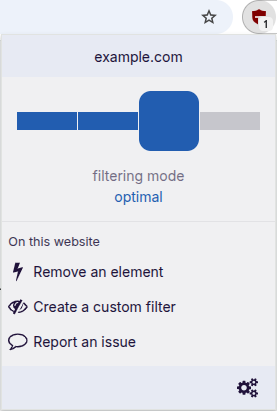
If the extension’s name ends in Lite, look for a horizontal slider. The developer’s illustrated guide shows the slider directly below the site address.
- Open uBlock Origin Lite from the toolbar on the TGP article.
- Note the current filtering mode so you can restore it. Move the slider all the way to the left, until the panel reads No filtering.
- Reload the article if it hasn’t already refreshed. To undo the change, return the slider to its previous position and reload.
AdGuard AdBlocker
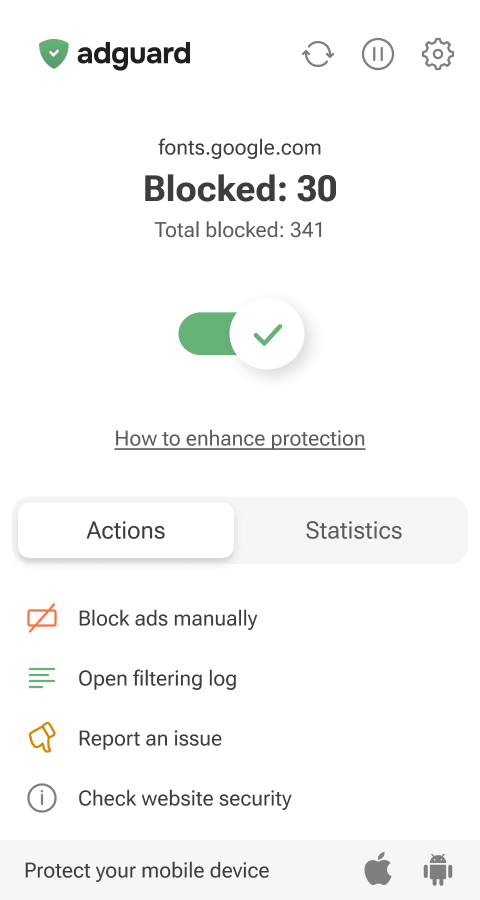
For the AdGuard browser extension, open its green shield icon. In AdGuard’s extension menu, the current site has a large switch of its own.
- Look for the TGP address. Click the large green switch with the check mark beneath the blocking statistics. The small pause button in the top row has a broader effect.
- Reload the TGP article. To turn filtering back on for TGP, click the same large switch again.
Ghostery
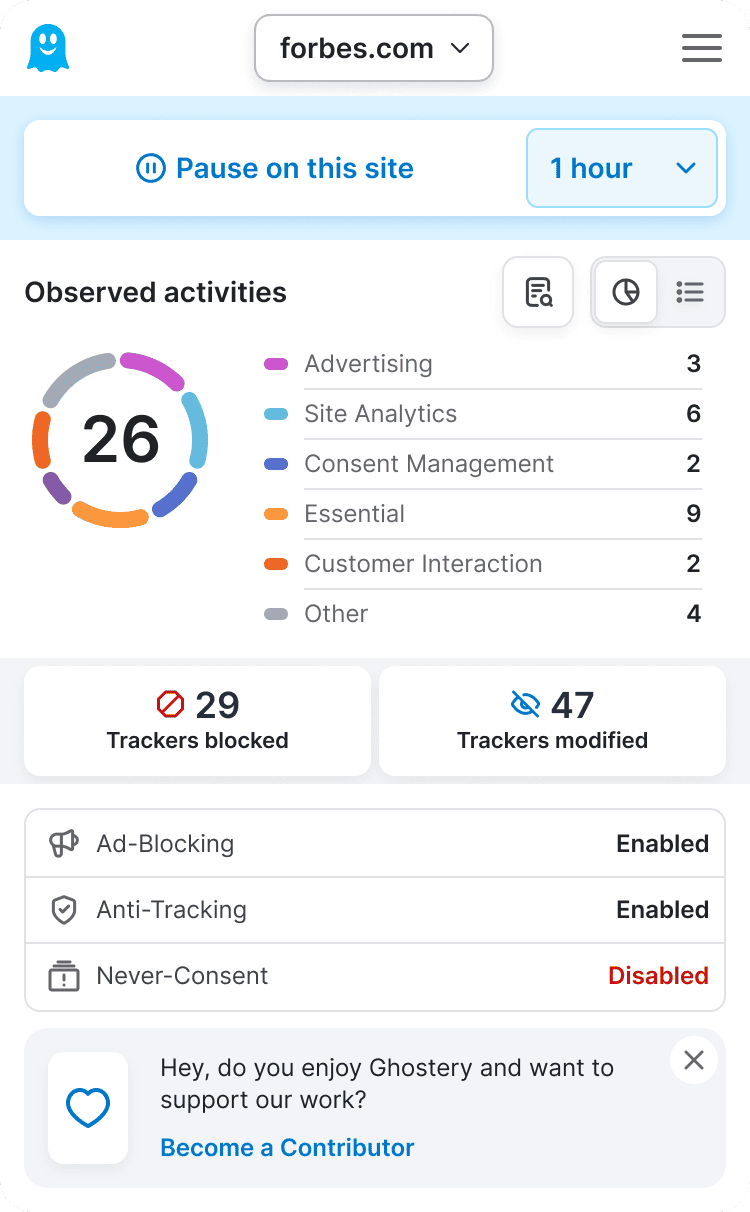
Click the ghost icon with the TGP article open. Ghostery’s site-pause control lets you choose how long the exception lasts.
- Choose a duration beside Pause on this site. 1 hour gives you time to test a video or post a comment. You can also pause until you turn protection back on yourself.
- Click Pause on this site, then reload the article. A timed pause expires automatically.
Safari on iPhone or iPad
With the TGP article open in Safari, tap the Page Menu at the left of the address field. Its icon looks like a little page above two lines. If the menu offers Turn Off Content Blockers, tap it and try the article again. That’s a quick way to find out whether a content blocker was involved.

To change a particular extension for this site, use Apple’s per-website extension controls. Open the Page Menu, tap Manage Extensions, and switch off your ad blocker for TGP. Return to the article and reload. Adblock Plus documents this same menu for both iPhone and iPad.
If you use the separate Adblock Plus app, you can also save TGP to its allowlist. Open the app, tap Safari Blocking, then Allowlisted Sites. Enter https://www.thegatewaypundit.com, tap Add, and reload the article in Safari.
Safari on Mac
- With TGP open, click the Page Menu at the left of Safari’s address field and choose Website Settings.
- Clear Enable content blockers for TGP, then reload the page. You can select the same checkbox again to restore it. Apple’s Safari guide shows where to find Website Settings.
If you prefer to change just one extension, AdBlock users can click its Safari toolbar icon and select Site under Allow ads on this…, as shown in AdBlock’s Mac instructions. With Adblock Plus, open its Safari toolbar icon and clear the checkbox for the current website.
Brave Shields on a computer or phone
Brave can block ads even if you never installed an extension. Its control is the lion in the address bar. Brave’s Shields guide shows the switch, and its mobile guide shows where to find the lion on a phone.
- Click or tap the lion and check that the panel shows the TGP domain.
- Turn off the main Shields switch for this site. If the panel says Shields are down for TGP, the change took effect. Reload if necessary and retry the feature.
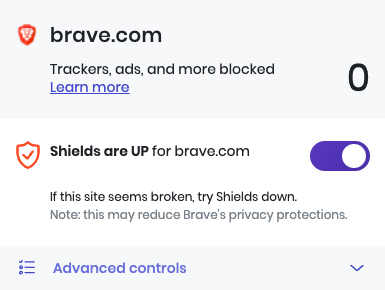
Lowering Shields also relaxes Brave’s other Shields protections on TGP. If it makes no difference, tap the lion again and put Shields back up. Brave remembers the setting you choose for each site.
Opera on a computer
Click the blue shield badge at the right of the address bar. In the panel that opens, turn off Ad Blocker for the current website and reload TGP. Opera’s illustrated guide shows the badge and the panel. If you also installed ABP in Opera, it has its own website switch.
Samsung Internet on Android
For a quick test with AdBlock, open the browser menu on the article and tap View without content blocker if it appears. You can read or watch the page that way. The next reload restores blocking, as AdBlock’s Samsung instructions explain.
If you installed ABP for Samsung Browser, open that app on your phone. Following the developer’s Samsung instructions, tap Add websites to the allowlist, then the + in the lower-right corner. Enter https://www.thegatewaypundit.com, tap OK, and return to Samsung Internet to refresh the article.
What if the browser itself is doing the blocking?
If you’ve paused your extension or couldn’t find one, check the control for your browser below. Firefox and Edge include tracking protection that can affect a video player or comment box. Change one setting at a time and retry the same feature after each reload.
Google Chrome on a computer
If Chrome itself says it blocked intrusive ads, click the site-controls icon to the left of the address, then Site settings. Under Permissions, set Intrusive ads to Allow. Go back to the TGP tab and reload. Google documents this site-specific exception. An installed blocker such as AdBlock or uBlock Origin Lite still follows its own settings.
Google Chrome on Android
Open the article, tap the site information icon beside the address, then Permissions. Some versions put this under More (three dots), then Site controls, then Permissions. If Intrusive ads appears for TGP, tap it, allow ads for the site, and reload. Google’s Android permissions guide explains the site menu. If the permission isn’t listed, you can leave Chrome’s browser-wide ad setting alone.
Mozilla Firefox on a computer
Click the shield to the left of the web address. Turn off Enhanced Tracking Protection for TGP. Firefox reloads the page automatically. If the problem persists, use the same switch to restore protection. Mozilla’s troubleshooting guide specifically mentions videos and comment fields that fail to load.
Firefox on Android
Tap the shield in the address bar, switch off Enhanced Tracking Protection for this website, then refresh the article. Mozilla’s Android guide notes that this also relaxes cookie protection for the site. If you installed uBlock Origin in Firefox as well, it still has its own power button.
Microsoft Edge on a computer
Click View site information at the left of the address. In the panel, switch Tracking prevention for this site to Off, then reload TGP. Microsoft’s tracking prevention guide explains that the exception allows trackers on this site. You can restore the switch immediately after your test.
Still missing a video, comments, or the verification box?
Try the same article in a second browser on the same device. If the feature works there, that gives Tech Support a useful clue. If it fails in both browsers, we want to hear that, too. When you contact TGP Tech Support, please send the exact article URL, the device and browser you used, the name of any blocker you paused, and what happened after you refreshed. A screenshot of the empty player or the error message helps us see what you’re seeing.
If allowing ads fixed the problem, leaving TGP on your blocker’s allowlist is one way to support our reporting. If you’d prefer to support us directly and see fewer ads, you can compare TGP memberships. The membership page explains which ads may still appear, including ads served by third-party video players.
